
Supabase Database
In Primio you can use Supabase as a real database for your app. This guide walks through the full process using a trivia app as an example. No coding required.
Step 1 — Open the SQL Editor in Supabase
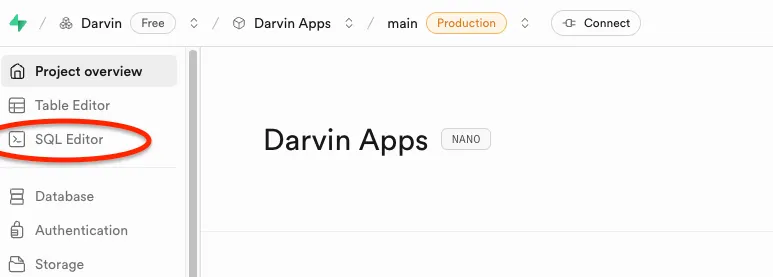
Section titled “Step 1 — Open the SQL Editor in Supabase”Log in to your Supabase project and click SQL Editor in the left sidebar.
Step 2 — Generate the table schema with AI
Section titled “Step 2 — Generate the table schema with AI”Open your favourite AI chat tool — ChatGPT, Claude, Gemini, or Mistral — and prompt:
Generate the simplest possible SQL schema for a basic trivia appwith absolute minimal tables in Supabase. I want to store in thedatabase only questions and answers with 3 wrong and 1 correct.The output may vary slightly depending on the AI model, but you should get SQL similar to this:
-- Simple trivia app schema for Supabase-- Single table approach with all answers in one row
CREATE TABLE questions (  id UUID DEFAULT gen_random_uuid() PRIMARY KEY,  question TEXT NOT NULL,  correct_answer TEXT NOT NULL,  wrong_answer_1 TEXT NOT NULL,  wrong_answer_2 TEXT NOT NULL,  wrong_answer_3 TEXT NOT NULL,  created_at TIMESTAMP WITH TIME ZONE DEFAULT NOW());
-- Enable Row Level Security (recommended for Supabase)ALTER TABLE questions ENABLE ROW LEVEL SECURITY;
-- Basic policy to allow reading questions (adjust as needed)CREATE POLICY "Allow public read access" ON questions  FOR SELECT USING (true);
-- Sample dataINSERT INTO questions (question, correct_answer, wrong_answer_1, wrong_answer_2, wrong_answer_3) VALUES('What is the capital of France?', 'Paris', 'London', 'Berlin', 'Madrid'),('What is 2 + 2?', '4', '3', '5', '6'),('Which planet is closest to the Sun?', 'Mercury', 'Venus', 'Earth', 'Mars');Step 3 — Run the SQL in Supabase
Section titled “Step 3 — Run the SQL in Supabase”-
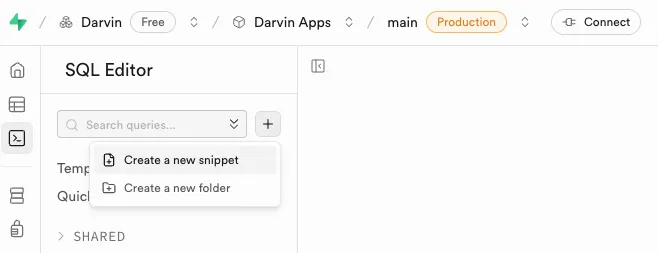
In the SQL Editor, click the + button and select Create a new snippet
-
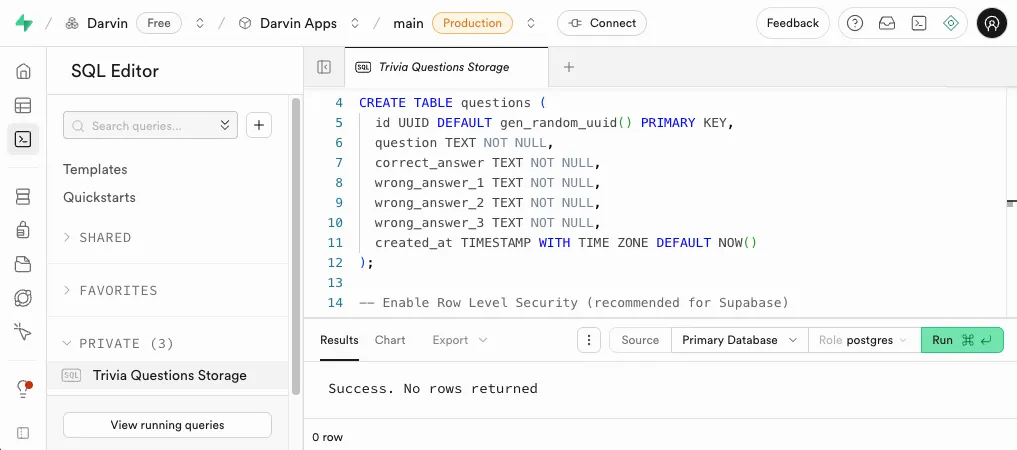
Paste the SQL from Step 2 and click Run
-
Open Table Editor to confirm your
questionstable was created with the sample rows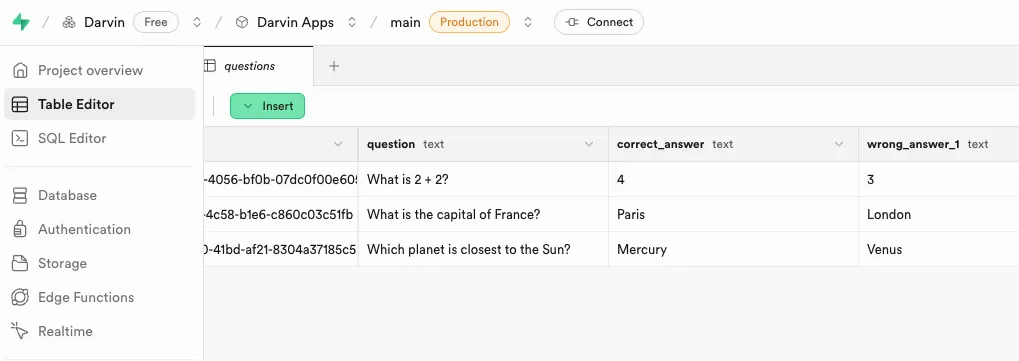
Step 4 — Find your Supabase credentials
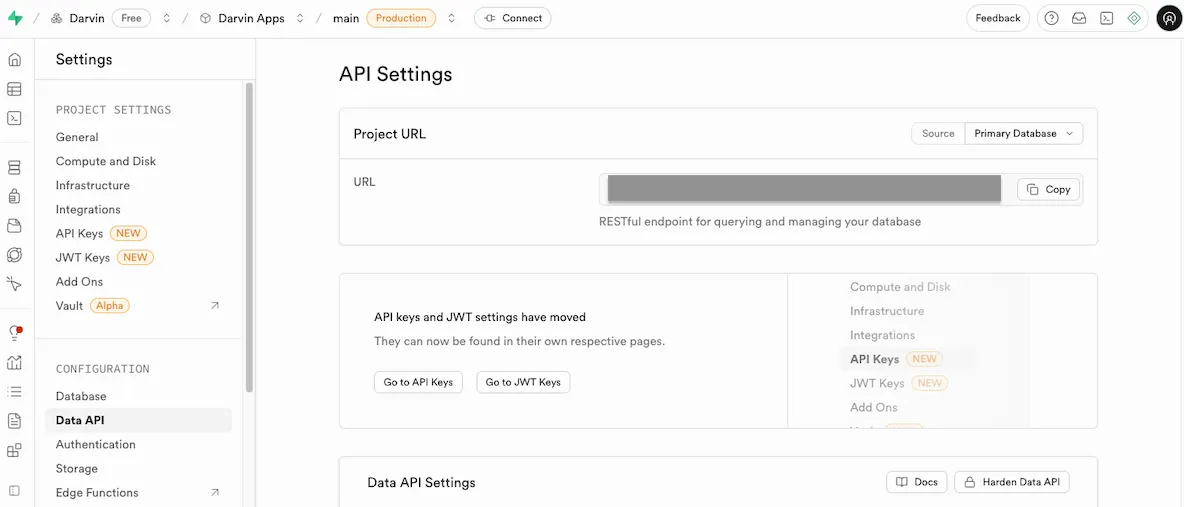
Section titled “Step 4 — Find your Supabase credentials”You need two values to connect Primio to your database:
- Project URL — the REST endpoint for your Supabase project
- Anon public key — the safe-to-use API key for public access
Go to Project Settings → Data API. Copy the Project URL from the top section, then click Go to API Keys to find the anon key.
Step 5 — Build your app in Primio
Section titled “Step 5 — Build your app in Primio”In Primio, send a single prompt that combines the build instruction, your Supabase credentials, and the SQL schema from Step 2. Replace the placeholder URL and key with your actual values:
Create a Trivia App using Supabase as the database, based on thetable schema and Supabase credentials provided below:
Project URL: https://your-project.supabase.coAnon public key: your_anon_key_here
-- Simple trivia app schema for SupabaseCREATE TABLE questions (  id UUID DEFAULT gen_random_uuid() PRIMARY KEY,  question TEXT NOT NULL,  correct_answer TEXT NOT NULL,  wrong_answer_1 TEXT NOT NULL,  wrong_answer_2 TEXT NOT NULL,  wrong_answer_3 TEXT NOT NULL,  created_at TIMESTAMP WITH TIME ZONE DEFAULT NOW());
ALTER TABLE questions ENABLE ROW LEVEL SECURITY;
CREATE POLICY "Allow public read access" ON questions  FOR SELECT USING (true);
Primio reads the schema, connects to your Supabase project, and builds the full app — questions fetched live from the database, answer selection, score tracking, and navigation between questions.
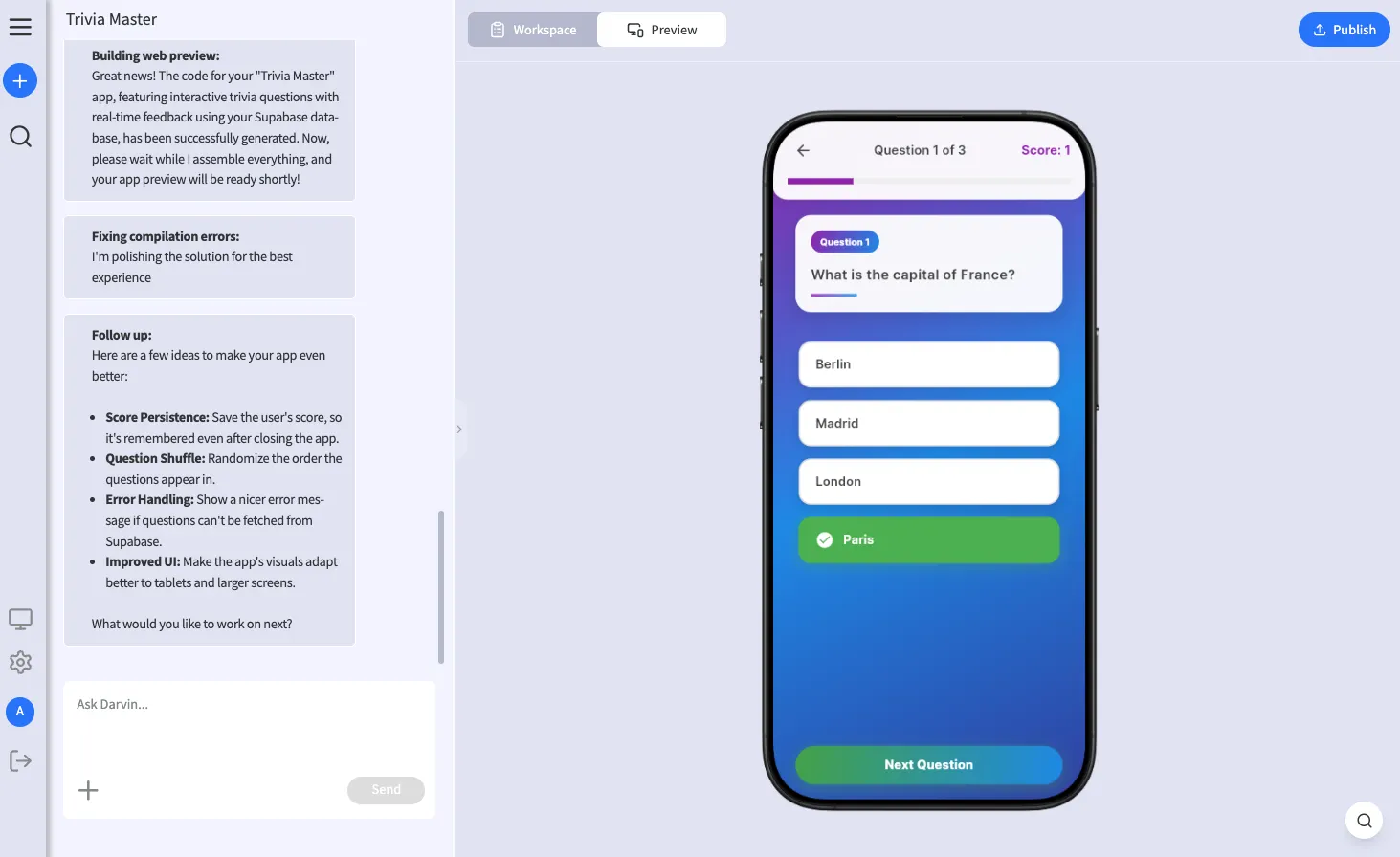
In five steps you have a real database-powered app — without writing a single line of code.