
Emulator
The Emulator runs your actual built binary — APK or iOS Emulator bundle — inside the workspace, on a virtual device running the same operating system as a real phone or tablet, with live debug logs. Unlike Live Preview (which renders a Flutter web build at a chosen viewport size), the Emulator executes your binary against a real Android or iOS runtime, so platform-specific behavior, fonts, and runtime logs match what your users will see.
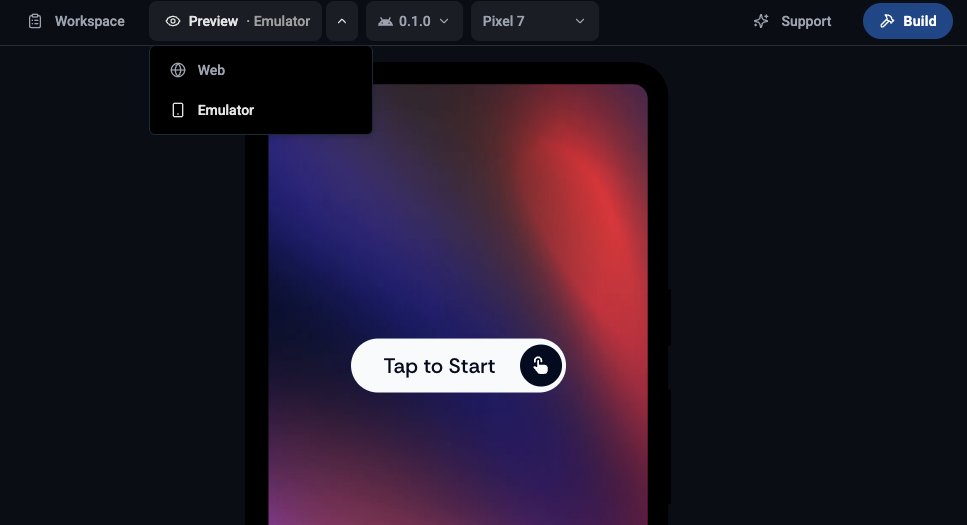
The Emulator is available on desktop only. Above the preview area sits a dropdown — labeled Preview by default — with two options: Preview (the Flutter web build) and Emulator (this feature). Pick Emulator to swap the preview panel for an emulator session.
What you need to run a build
Section titled “What you need to run a build”The Emulator runs completed builds of either of these types:
- Android APK — created from the Build section.
- iOS Emulator — created from the Build section, no App Store Connect credentials required.
If you don’t have a completed runnable build yet, the Emulator panel will prompt you to start one.
Opening the Emulator
Section titled “Opening the Emulator”-
In the workspace, open the preview-target dropdown in the top bar (it shows Preview by default) and pick Emulator.
-
The Emulator auto-starts the most recently completed runnable build (APK or iOS Emulator, whichever was built last).
-
Alternatively, open Build → history, find a specific completed build, and click Run in emulator on that row.
Switching builds and devices
Section titled “Switching builds and devices”Two top-bar dropdowns let you change what’s running without leaving the Emulator:
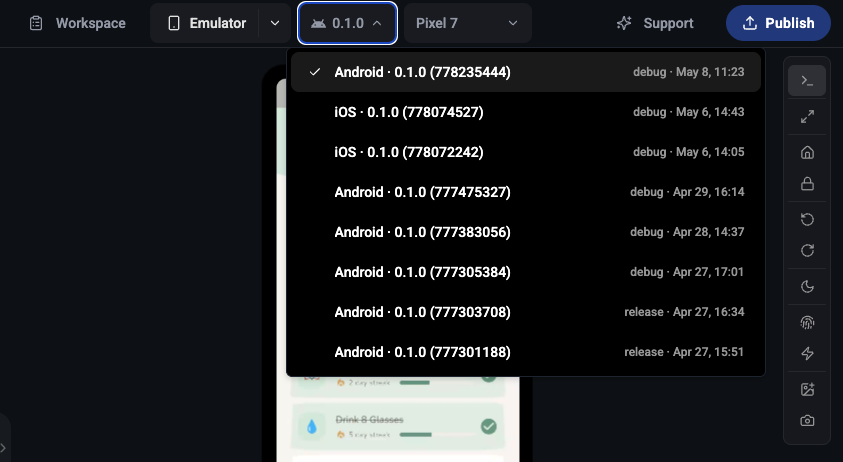
- Build dropdown — lists all completed APK and iOS Emulator builds, newest first. Rows are labeled
Android · 0.1.0 (123456)oriOS · 0.1.0 (123456)with build mode and date so platform is unambiguous. The currently-running build has a check mark. - Device dropdown — platform-filtered. While running an iOS build it shows only iPhones and iPads; while running an Android build it shows only Pixels and Galaxy Tab. While the device list is loading (or while a new session is being prepared), the dropdown button shows a spinner and is disabled.
Switching builds or devices starts a fresh session.
Live emulator controls
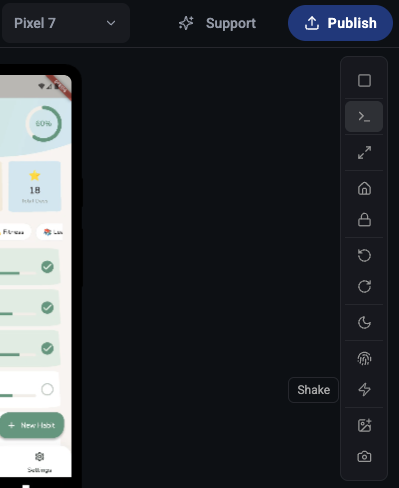
Section titled “Live emulator controls”A vertical toolbar pinned to the top-right of the emulator viewport exposes runtime controls. From top to bottom:
- Stop — immediately ends the running session. The emulator returns to its “tap to start” state, from which you can launch a fresh session.
- Logs — toggles the debug logs panel below the device.
- Scale — switches between Fit to screen (auto-scale to the available area) and 1:1 (native pixel size).
- Home — sends the device Home key.
- Lock — sends the lock-screen key.
- Rotate ↺ / Rotate ↻ — rotates the device left or right.
- Appearance — toggles the emulator’s system appearance between Dark and Light, so you can verify both themes without rebuilding.
- Biometry — triggers a successful biometric auth response (Face ID / Touch ID / fingerprint), useful for screens that gate behind an unlock.
- Shake — simulates the device shake gesture.
- Media — opens a file picker to feed an image or video into the running emulator (e.g. as a camera roll selection).
- Screenshot — opens a small menu with two options: Save to disk (download the capture as a PNG) and Add to prompt (attach it to the chat input, going through the crop modal on desktop).
Debug logs
Section titled “Debug logs”The logs panel is the primary diagnostic surface when something misbehaves at runtime. It sits below the Emulator and is open by default when the Emulator boots.
What’s captured: runtime console output from the running app — print, debugPrint, exceptions, framework warnings, plugin logs, and platform-level (Android logcat / iOS console) lines — each one timestamped.
Tip: for the most useful logs, build the binary you’re running here in debug mode. Debug builds emit debugPrint, assertion failures, and framework warnings that release builds strip out; release builds are much quieter on purpose. See Build modes for how to switch.
Header controls:
- Count badge — the number of log lines in view. When filtering is on, it reads
visible/total. - Filter — toggles a noise-reduction filter. On by default: on Android it shows lines tagged
*/flutter(any priority —V/,D/,I/,W/,E/,F/) or lines containing the app’s package name; on iOS it shows lines taggedRunner[*]or lines containing the app’s bundle ID — i.e. your app’s output and platform messages about your app, with system chatter hidden. Turn it off to see the full firehose. - Copy logs — opens a small menu with two options: Add to prompt (appends the visible logs into the chat input as a fenced code block) and Copy to clipboard. Both respect the filter — only what’s on screen is shared. Add to prompt is the fastest path back to Primio when something breaks: click it, then send the prompt; the AI sees the exact runtime output without you context-switching to copy/paste.
- Clear logs — empties the panel. The most useful “before” step: clear, reproduce the bug, then copy — you get exactly the lines that matter and nothing else.
- Close — collapses the panel. Reopen from the Logs button on the emulator toolbar.
Session behavior
Section titled “Session behavior”- A new session starts when you switch builds or devices, or when you re-open the Emulator after closing it.
- The Stop button on the toolbar ends the session on demand, without leaving the Emulator.
- Closing the workspace ends the session.
Limitations
Section titled “Limitations”The Emulator runs your binary on a remote virtual device streamed into the browser, which trades some fidelity for the convenience of not needing local SDKs. Things to be aware of:
- Input lag — taps, scrolls, and keystrokes can have a small delay, especially on slower networks. Don’t trust it for benchmarking timing-sensitive animations.
- No audio — sessions are silent. Sound-dependent features can’t be verified here.
- No camera on iOS — the iOS emulator has no working camera. Android sessions can use Media to feed a still or video in place of the camera; iOS cannot.
- Fixed GPS location — geolocation returns a default position; you cannot mock arbitrary coordinates yet.
- No Bluetooth / NFC — these radios aren’t simulated, so any feature that depends on them will not function.
- Session time limit + wait times — each session is capped (currently a few minutes, subject to change based on demand) and may queue briefly before starting at peak times. The session timer in the bottom-right corner shows elapsed time.
For anything affected by these limits — release-quality audio QA, camera flows on iOS, real-device sensors — test on a physical device after producing a build.
Related
Section titled “Related”- Live Preview — the complementary web preview for fast layout iteration.
- Android Builds — how to produce the APK you’ll run here.
- iOS Builds — how to produce the iOS Emulator build.