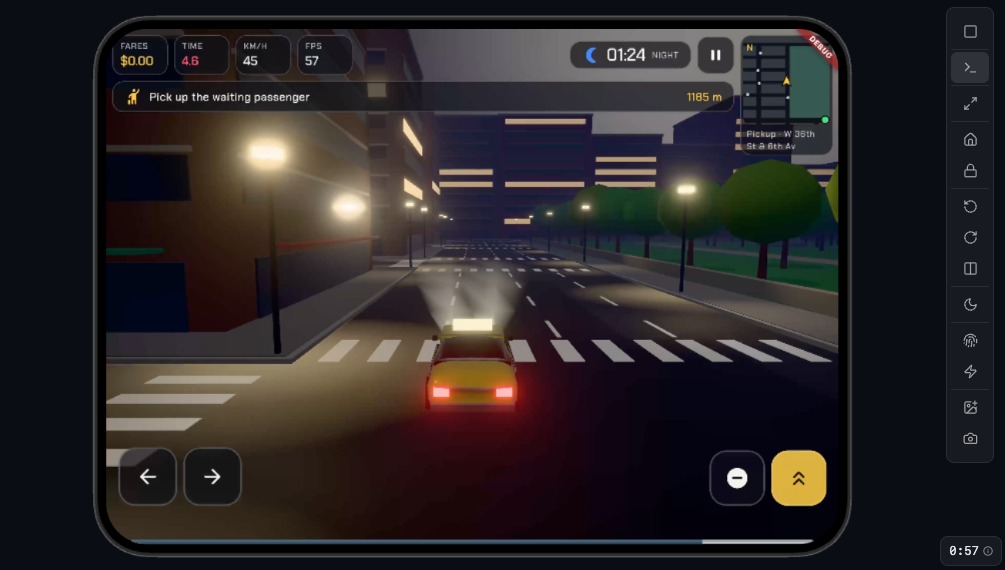
iPhone Duo, Apple’s first foldable iPhone, went on sale on October 23. It is now available as a device in the Primio Emulator, alongside the existing iPhones and iPads, and the Emulator toolbar has a new Hinge control for changing its fold state while your app runs.
Running your build on iPhone Duo
Nothing changes about how the Emulator works. It runs the iOS build Primio produced for you on a virtual device with the real operating system, so what you see is the binary, not a web preview.
To use it, switch the preview to Emulator with an iOS build running, open the Device dropdown, and pick iPhone Duo. The session restarts on the new device with the same build. All existing toolbar controls apply: Home, Lock, Rotate, Dark and Light appearance, Biometry, Shake, Media, Screenshot, and the live log panel.
The Hinge control
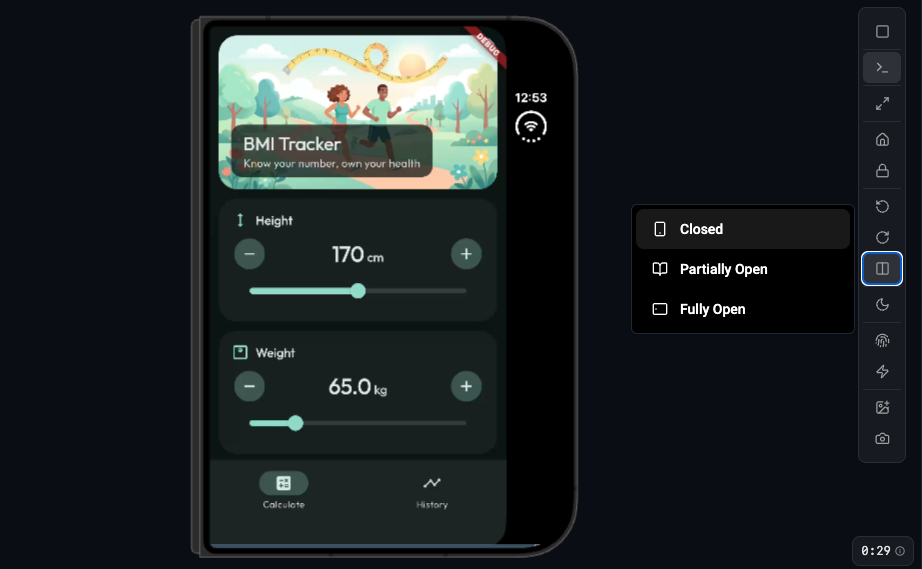
When the selected device is foldable, a Hinge button appears in the toolbar below the Rotate buttons. It opens a menu with three states:
- Closed — the device is folded shut and your app runs on the outer display, like a regular iPhone.
- Partially Open — the device is open at an angle, similar to a small laptop. The inner display is active and the hinge runs across the middle of the screen.
- Fully Open — the device is open flat and your app runs on the full inner display.
Changing the state does not restart the session. The display resizes, iOS tells the app about the new window size, and your layout responds the way it would on the physical device. The currently selected state is highlighted in the menu. The control is hidden on devices that don’t fold.
What a fold exposes
From the app’s point of view a fold is a window resize, with two differences from rotation: the aspect ratio changes a lot, and in the partially open state there is a physical hinge across the content. These are the things most worth checking on each screen of your app:
- Use of space when fully open. A single-column phone layout often becomes a wide, mostly empty page. Screens with a list and a detail view usually work better side by side above a certain width.
- Content across the hinge when partially open. Controls, text fields, or media centered on the fold are hard to use. Content should either keep clear of the crease or split deliberately above and below it.
- State across transitions. Scroll position, form input, and playing media should survive the change in screen size.
Primio builds Flutter apps, and Flutter’s layout system is already responsive to window size, so many screens adapt without changes. Where one doesn’t, describe the adjustment in chat as you normally would, for example “on iPhone Duo fully open, show the product gallery on the left and details on the right”, rebuild, and check the result in the Emulator.
Notes
- The Emulator provides iPhone Duo as an iOS simulator, so the usual Emulator limitations apply: no camera on iOS, no audio, and a session time limit.
- The Hinge control is specific to foldable devices. Android devices in the Emulator are currently all non-folding.
- The Hinge control and the device are documented in the Emulator docs.