
iOS Builds
Primio can build native iOS IPA files for TestFlight testing and App Store submission. iOS builds require App Store Connect API credentials.
Cost: 40,000 tokens | Build time: ~10 minutes
What you need
Section titled “What you need”iOS builds require three pieces of information from your Apple Developer account:
- App Store Connect API Key (.p8 file) — A private key file downloaded from App Store Connect
- Key ID — A 10-character alphanumeric identifier shown next to your key
- Issuer ID — A UUID found at the top of the App Store Connect API Keys page
Setting up credentials
Section titled “Setting up credentials”-
Open App Store Connect
Go to App Store Connect → Users and Access → Integrations → App Store Connect API.
-
Generate a new API key
Click the + button. Give the key a name (e.g., “Primio Build Key”) and select the App Manager role.
-
Download the .p8 file
Click Download. You can only download this file once — save it somewhere secure.
-
Note the Key ID
The Key ID is shown next to your key in the list. It’s a 10-character alphanumeric string.
-
Note the Issuer ID
The Issuer ID is shown at the top of the API Keys page. It’s a UUID in the format
xxxxxxxx-xxxx-xxxx-xxxx-xxxxxxxxxxxx.
Building the IPA
Section titled “Building the IPA”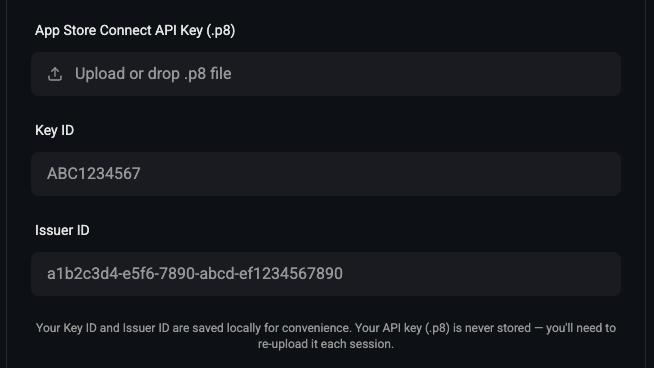
-
Open the Publish section
Go to Workspace → Publish → iOS.
-
Upload your .p8 key file
Drag the file into the upload area or click to browse.
-
Enter your Key ID and Issuer ID
Paste the values from App Store Connect.
-
Click “Build IPA”
The build takes about 15 minutes.
Your Key ID and Issuer ID are saved in your browser session, so you don’t need to re-enter them for future builds in the same session.
After the build
Section titled “After the build”Once the build completes, you need to upload the IPA to App Store Connect and test it.
Create your app in App Store Connect
Section titled “Create your app in App Store Connect”Before uploading, register your app in App Store Connect — Transporter will fail if the app doesn’t exist yet.
- Go to App Store Connect → Apps → + → New App
- Fill in the app name, select your Bundle ID, set a SKU, and choose the primary language
- Click Create
Upload with Transporter
Section titled “Upload with Transporter”- Download Transporter on your Mac (free from the Mac App Store)
- Open Transporter and sign in with your Apple Developer account
- Drag the IPA file into Transporter and click Deliver
- Wait for upload and processing (5-15 minutes)
Test with TestFlight
Section titled “Test with TestFlight”- In App Store Connect, go to your app → TestFlight
- Your uploaded build appears after processing
- Complete the Export Compliance Information (most apps select “None of the algorithms mentioned above”)
- Create an Internal Testing group and add yourself as a tester
- Download the TestFlight app on your iPhone
- Open the email invitation on your iPhone — tap the link to install and test
You can add up to 100 internal testers and 10,000 external testers via TestFlight.
Submit to the App Store
Section titled “Submit to the App Store”When you’re happy with testing, see the App Store Submission Guide for the full step-by-step submission process.
Project compatibility
Section titled “Project compatibility”Build history
Section titled “Build history”Past builds are listed below the build form. Each entry shows the build status, download link for completed builds, and error messages if something went wrong.