
Rollback
Learn to use rollback effectively — your most important tool when things go wrong.
Things will go wrong during development. The AI will sometimes produce errors, get stuck, or build something different from what you expected. This page covers the most common issues and how to handle them efficiently.
When the AI detects a compilation error in your app, it automatically tries to fix it. You’ll see tool usage messages in the chat as the AI reads error logs, identifies the issue, and modifies code. Most errors are resolved within one or two fix cycles without any action from you.
This is normal behavior. Let the AI work through it. Only intervene if the fix cycle repeats more than two or three times — that’s a loop.
An error-fixing loop looks like this: the AI changes a file, gets the same (or a similar) error, changes the file again, gets another error, and keeps going. Each cycle costs tokens, and the chances of the AI breaking out on its own decrease with each attempt.
What to do:
Roll back
Revert to the last working state — the agent message before things broke. See Rollback.
Rephrase your request
The original prompt likely asked for something the AI couldn’t implement in one shot. Break it into smaller, simpler steps.
Try a different approach
If the AI struggled with a specific implementation, describe the feature differently. Instead of “add a complex animation,” try “add a simple fade-in when the screen loads.”
Switch models
If you’re using Sonnet and the task is complex, switch to Opus. More capable models handle tricky code problems better. See Model Selection.
The web preview is a Flutter web build running in your browser. It is not device emulation. Your app can look and behave differently on a real phone.
Things that only work on a real device:
Things that may look or feel different:
Solution: Test on a real device periodically, not just at the end.
Flutter has a strict layout engine. When the children of a vertical layout (a Column, a custom widget, or a fixed-height container) take up more space than the parent allows, Flutter doesn’t silently clip the content — it renders a yellow-and-black “BOTTOM OVERFLOWED BY X.0 PIXELS” warning banner across the bottom of the widget.
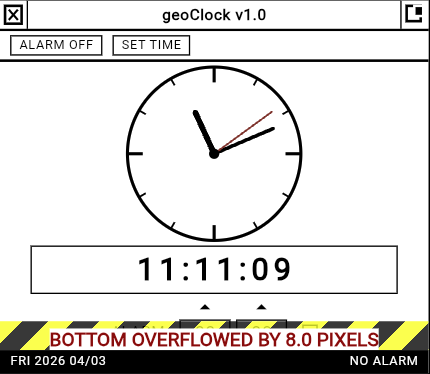
This commonly happens when:
The overflow is cosmetic in the preview — the app still runs — but it signals a real layout problem that will show on actual devices too.
How to fix it in Primio:
Screenshot the error
Use the preview’s screenshot button (camera icon, bottom-right corner) and choose Add to prompt, or take a regular screenshot and drag it into the chat.
Describe the problem
Something like: “This widget is overflowing at the bottom — please fix the layout so everything fits.”
Let the AI fix it
The AI will read the relevant layout file, calculate the available space, and adjust. Common fixes include reducing widget sizes, tightening padding and spacing, wrapping content in a SingleChildScrollView, increasing the parent container’s height, or replacing fixed sizes with Expanded or Flexible widgets.
Check the result — a second round may be needed
Most overflows are fixed in one round. If the AI shrinks content but the container is still too small (or vice versa), send a follow-up: “It’s still overflowing” with a new screenshot. The second pass typically resolves it.
Sometimes the AI completes only part of your request — it builds the screen but skips the navigation, or adds three of the five features you asked for.
Why it happens: Complex multi-part requests can exceed the AI’s attention span in a single response. The AI finishes what it considers the primary task and stops.
What to do:
Both Google Play (AAB) and direct installs (APK) need an app icon. If you haven’t set one, the build may fail or produce an app with a broken icon. Upload a custom icon in Workspace → App Icon before building. See App Icon.
Apple allows a maximum of 3 active iOS distribution certificates per account. If you’ve hit the limit, revoke an unused certificate in your Apple Developer Portal and try again.
Double-check your App Store Connect API credentials:
See the iOS credentials guide in the Publish section for step-by-step setup.
The AI may have introduced a code issue that wasn’t caught in the preview but breaks the native build. Roll back to the last known-good state and try a simpler approach. If the same build error persists after rollback, the issue may be in an earlier change — try rolling back further.
If your app crashes on a real device:
This happens because the AI restructures code during refactoring and may inadvertently change widget trees, default values, or styling in the process. The functionality might be identical, but the visual result shifts.
Some issues can’t be resolved through prompts or rollbacks:
Email support@primio.dev with your project ID and a description of the issue.
Rollback
Learn to use rollback effectively — your most important tool when things go wrong.
Building a Complete App
Follow the phased approach to minimize errors and build efficiently.
Getting the Best Results
Prevent common issues before they happen — strategies for effective AI collaboration.