
Model selection
Choose the right model for your task — speed vs. quality vs. token cost.
The more context you give the AI, the better the result. Primio supports several ways to attach context beyond plain text.
Open the attachments menu (+ button next to the text field) to see all options. Some have keyboard shortcuts for faster access.
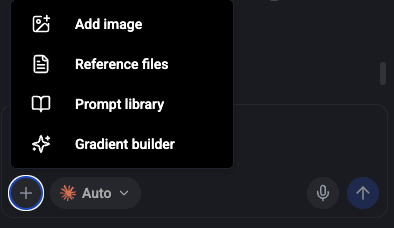
Attach reference images to show the AI what you want — UI mockups, design screenshots, inspiration from other apps, or photos of bugs. You can paste, drag and drop, or use the attachments menu. Supported formats: JPEG, PNG, WebP.
Type @ in the text field to open the file picker. Browse your project’s file tree or search by name, then select a file or folder to insert a reference like @file:lib/screens/home.dart into your prompt.
This tells the AI exactly which file or folder you’re talking about, so it can read the current contents and make targeted changes.
Behavior details:
@file: tokens so you can navigate around them naturally@file: token deletes the entire reference in one keystrokeGood use cases for file references:
@file:lib/widgets/header.dart to use a gradient background”@file:lib/models/user.dart and add a lastLogin field”@file:lib/screens/settings.dart match the style of @file:lib/screens/profile.dart”Capture your app’s live preview and attach it as context.
Click the screenshot button (camera icon) — on desktop it’s a floating button in the bottom-right corner of the preview area, on mobile it’s in the preview toolbar. A context menu appears with two options:
This is useful when you want to point at a specific part of the UI — a misaligned button, a section that needs redesigning, or an area where you want something added.
Create custom gradients visually and send the configuration to the AI.
Open the attachments menu and select Gradient Builder. You get a live preview with controls for colors, direction, and type. Choose from 20+ presets or build your own.
See Gradient Builder for full details.
Browse curated visual styles and apply one to your app.
The Design Library is available via a dedicated Design button when creating a new project. Pick from 12 professionally designed themes that set the overall look and feel of your app.
See Design Library for full details.
You get the best results when you combine multiple types of context in a single message.
Example prompt with rich context:
Redesign the profile screen to match this mockup [attached image]. Update
@file:lib/screens/profile.dart— keep the existing data fetching logic but replace the entire UI. Use rounded cards with subtle shadows and the app’s primary blue color.
Model selection
Choose the right model for your task — speed vs. quality vs. token cost.
Prompting fundamentals
Write better prompts to get better results from the AI.